
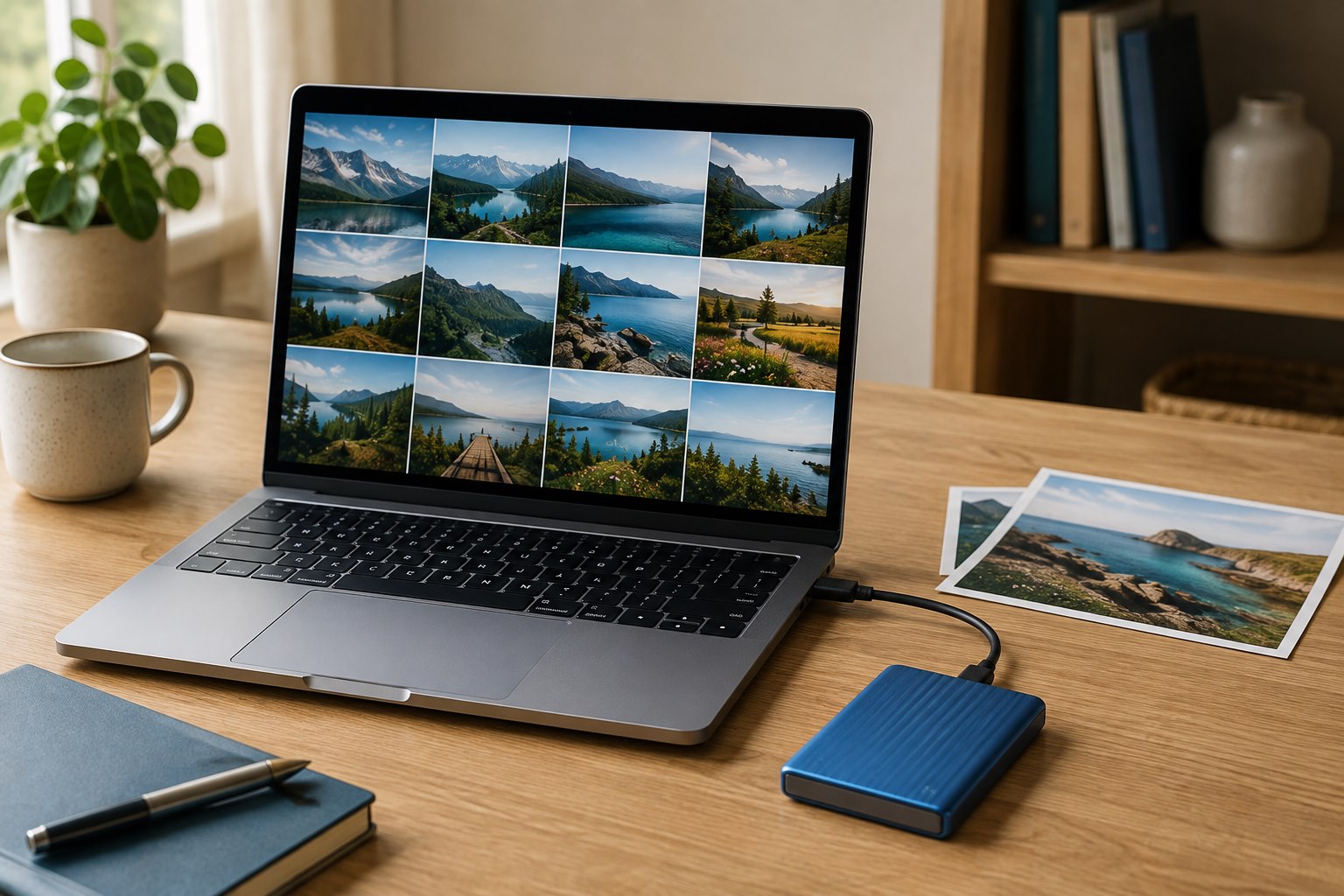
For photos you would hate to lose, the strongest everyday choice is usually more than one independent copy, rather than cloud storage or an external drive alone. A cloud service can make off-site copying convenient. An external drive can give you a local copy that remains available without downloading your whole collection. Each solves a different part of the problem.
Start by finding out what your current setup actually does. A phone that displays all your photos may be showing smaller previews while the originals live in the cloud. A cloud photo library may synchronize deletions across devices. A drive plugged into your laptop may contain an old copy you have not updated in months.
Separate syncing from an independent backup
Sync keeps a collection consistent across locations. That convenience can also propagate a mistake. Apple explains that deleting a photo while using iCloud Photos deletes it from other devices using that photo library. Recovery options may help within their allowed window, but a synchronized library should not be treated as a permanent archive of everything you have ever removed.
An independent backup gives you another recoverable copy when the working collection changes or fails. Some services include version history, deleted-file recovery, or dedicated backup features. Read the rules for your actual plan instead of assuming that the word “cloud” guarantees them.
Write down where your full-resolution originals exist. If you cannot identify them, resolve that before deleting files to make room. This small inventory is more useful than immediately purchasing a larger storage plan.
Choose cloud storage for convenience you will use
Cloud storage is attractive when you want automatic uploads, access from multiple devices, and a copy away from your home. It can reduce the routine work of protecting new phone photos, provided uploads are enabled and completing successfully.
Before choosing a plan, check:
- Whether it stores original quality or changes the files.
- Which devices and folders it includes automatically.
- What happens when the account reaches its storage limit.
- How deleted files and previous versions are handled.
- Whether you can export your entire collection in a usable format.
- What happens to access if you cancel or stop paying.
Upload speed matters for a large first transfer. Download speed matters when restoring everything after a device failure. A service that feels instant for viewing a few pictures may take much longer to restore an entire library.
Choose an external drive for a usable local copy
An external drive works well when you want direct access to a large collection, prefer a separate local archive, or have limited internet bandwidth. It still needs a routine. Purchasing the hardware does not copy anything automatically unless you configure software to do that job.
Check compatibility with your computer, the available ports, and the file system used on the drive. Choose enough capacity for the collection and expected growth rather than a size that is already almost full. If you intend to use it with a phone or tablet, verify the device’s supported connection and power requirements before buying.
A portable drive is easy to move but also easy to drop or misplace. A drive stored beside your computer can be affected by the same theft, spill, or fire. Keeping a separate copy elsewhere addresses a different risk from merely owning two devices on the same desk.
Compare ongoing costs using your own collection
Cloud plans usually involve recurring charges; a drive generally has an upfront purchase price and eventual replacement cost. Neither calculation is complete if you ignore the size of your photo library and how quickly it grows.
For a purely illustrative comparison, a plan costing $3 a month totals $36 a year before any applicable tax or price changes. A hypothetical $90 drive has a different payment pattern, but it may not replace the service’s off-site access or automatic phone uploads. These figures demonstrate arithmetic, not current product prices or a prediction of drive lifespan.
Include the value of a routine you will maintain. A lower-priced option that stays empty in a drawer offers little protection. You can review a recurring storage payment alongside other services using a periodic subscription check, but confirm your export and backup before canceling it.
Build a simple two-location routine
One practical arrangement is to let a cloud photo service handle everyday uploads, then periodically export full-resolution originals to an external drive. Another is to keep the main collection on a computer, back it up to a local drive, and use a separate off-site backup service.
The right arrangement depends on your devices and the service’s export behavior. Albums, edits, captions, and metadata may not transfer exactly as displayed in an app. Test a small export before assuming that copying image files preserves every organizational detail.
CISA’s guidance on protecting stored data emphasizes backing up important information. Translate that into a routine you can name: for example, check automatic uploads weekly and refresh the independent copy monthly, with an extra copy after an important trip or event.
Test recovery before you need it
Choose a few ordinary photos and one video from different dates. Restore or export them into a separate test folder. Open the files, check their resolution and playback, and make sure you know where the originals came from.
Do not delete the working files to prove that a backup exists. A non-destructive restore is enough to reveal many common problems, such as missing folders, incomplete uploads, or exports containing only previews.
Also check account recovery. Keep recovery information current, use a strong unique password, and enable supported multi-factor authentication. If you encrypt an external drive, keep the recovery key somewhere you can access when the original computer is unavailable.
Make the next step small
You do not need to reorganize ten years of pictures before protecting them. First identify the originals, create another complete copy, and verify a few restored files. Then decide how often to refresh it.
Cloud storage wins on convenience for many phone users; an external drive wins on direct local access for many large collections. For irreplaceable photos, combining their strengths is often the more useful answer than asking either one to handle every possible failure.
Did this guide help?
Your optional support helps PeekBlue research and publish practical guides that remain free for everyone.
Support PeekBlue One-time support. Articles stay free.